How to Configure Windows Proxy Settings Safely
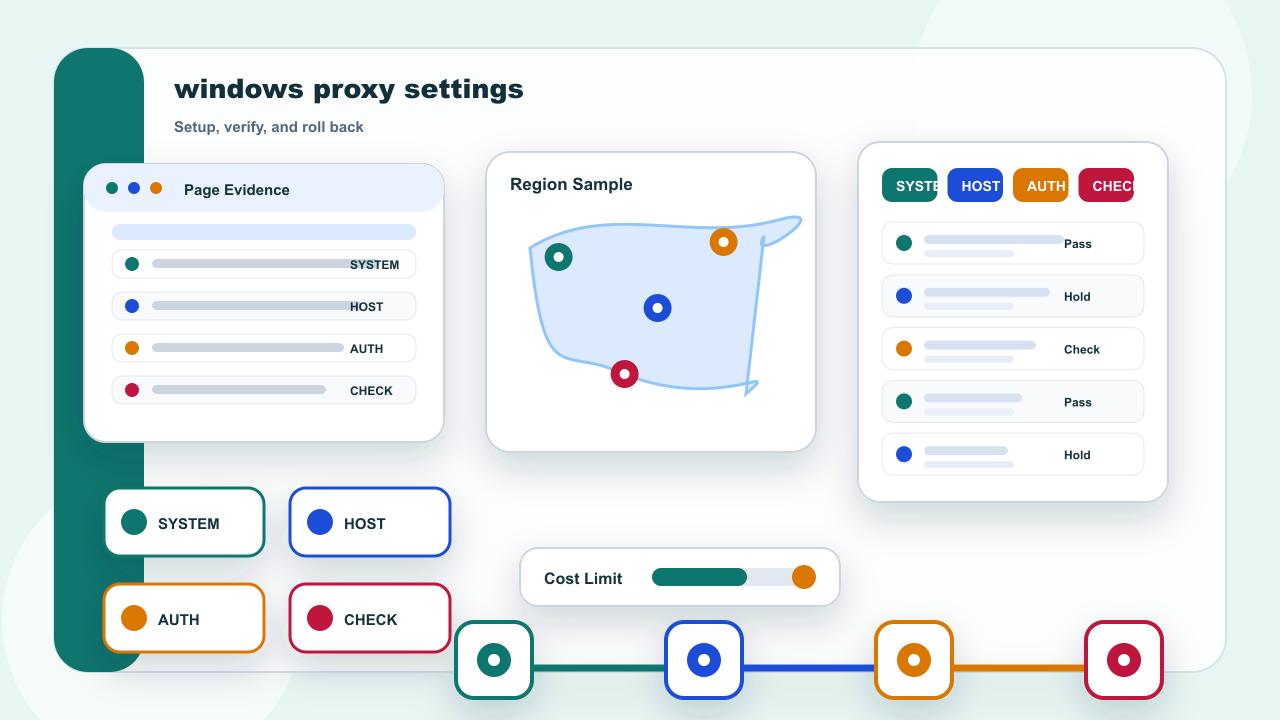
Start with the answer: Identify the Active Windows Network Path
Start by finding the Windows layer that actually controls the current connection. A machine may combine system proxy settings, browser-specific settings, application configuration, and managed policy, so the visible result only has value after the active layer is known.
Active layer needs a repeatable record: Windows may use system proxy, app settings, or managed policy. If it conflicts with endpoint fields, correct the setting or record before changing the address mode.
Where are Windows proxy settings usually checked? Start with the Windows network proxy panel, then confirm whether an app or managed policy overrides it. Keep the action inside an authorized task and a permitted public-page scope; stop when a policy, permission, or target restriction applies.
This part separates identify the active windows network path into configuration, verification, and rollback so one change can be tested at a time.
IPIPD content here is limited to static residential addresses and dynamic residential addresses; the choice depends on continuity versus independent sampling.
The verification row should preserve the actual active layer value, test time, target, expected behavior, and rollback method. When the result differs, change one field only and repeat the controlled check before drawing a conclusion.
Save the Current Proxy Baseline
| Field | What to record |
|---|---|
| Active layer | Windows may use system proxy, app settings, or managed policy |
| Endpoint fields | Host, port, protocol, and authentication must match the assigned record |
| Credential safety | Shared screenshots should hide usernames, passwords, and tokenized URLs |