IPIPD Proxy Connection Failure Troubleshooting Guide
This troubleshooting guide helps users resolve connection failures when using IPIPD proxies. If you encounter connection timeout, authentication failure or proxy test errors after setting up proxies on fingerprint browsers or third-party applications, follow the step-by-step checklist below for troubleshooting.
Prerequisite: Ensure you have purchased valid IPIPD proxy plans and obtained complete proxy credentials (IP address, port, username and password). Reach out to online support for purchase inquiries if needed.
Step 1: Double-Check Proxy Configuration Details
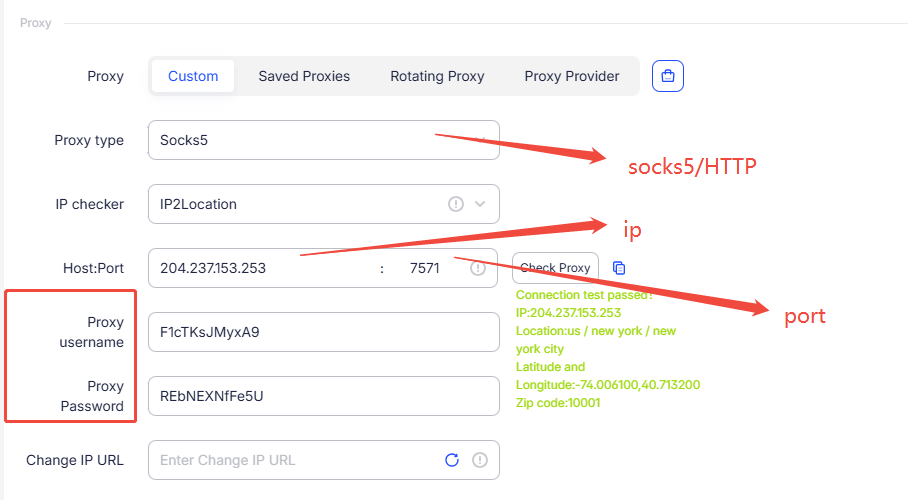
Accurate credential entry is critical for successful proxy connection. Follow the standard format:
IP:Port:Username:PasswordUse only English colon
:Log into your IPIPD backend and verify every parameter below:
Proxy IP Address: Match the backend value exactly, no extra spaces or characters, case-sensitive
Port Number: Input identical port without leading/trailing whitespace
Username: Full username entry with correct uppercase/lowercase spelling
Password: Verify password accuracy; reset password in dashboard and retry if uncertain
Supported Proxy Protocols
Select the protocol matching your business scenario; SOCKS5 is recommended for highest compatibility and success rate:
Protocol | Scenario | Notes |
|---|---|---|
SOCKS5 | Universal option, supports both TCP & UDP transmission | Best performance and compatibility |
HTTP | For plain HTTP access only, TCP exclusive | Basic HTTP support |
HTTPS | Encrypted HTTPS access | UDP enabled by default |
Verify Proxy Availability via Official Test Tool
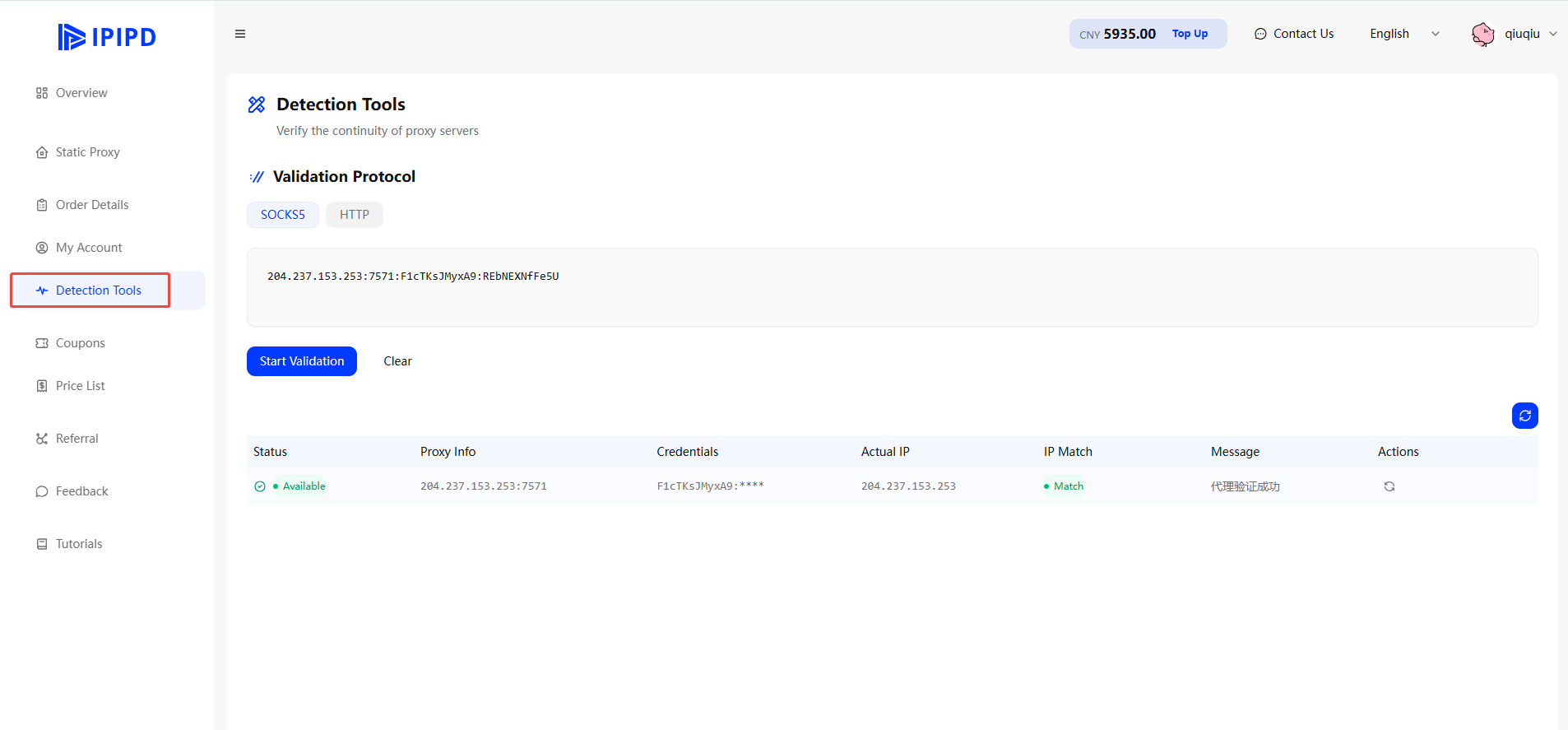
After finishing configuration, test proxy validity with IPIPD's built-in backend checker:
Visit the official proxy testing page on IPIPD website
Input proxy IP and port on the test interface
Click the verification button and wait for results
A passed test confirms valid proxy configuration
If still failing, proceed to next troubleshooting step
Step 2: Confirm Overseas Network Environment
Important Note: IPIPD proxies cannot work directly under mainland China domestic network; stable overseas network access is a mandatory precondition and the top cause of most connection failures.
Mandatory Environment Requirements
Your local network must be capable of accessing overseas internet resources
Stable network connection with sufficient bandwidth
Certain regional ISP or firewall restrictions may block proxy links
Environment Troubleshooting
Problem | Solution |
|---|---|
Located in Chinese mainland | Set up valid overseas network access before using proxies |
Unstable/Disconnected outbound network | Reconnect or switch to alternative overseas network |
Firewall/ISP port blockage | Ask your network operator to release restricted ports or change network exit node |
Disclaimer: IPIPD only provides residential proxy IP resources. We do not supply or assist with overseas network setup or configuration. Users shall prepare compliant overseas network independently.
Step 3: Fingerprint Browser Setup Inspection
(AdsPower, Multilogin and similar anti-detect browsers share similar proxy setup rules; follow the steps below)
Setup Steps
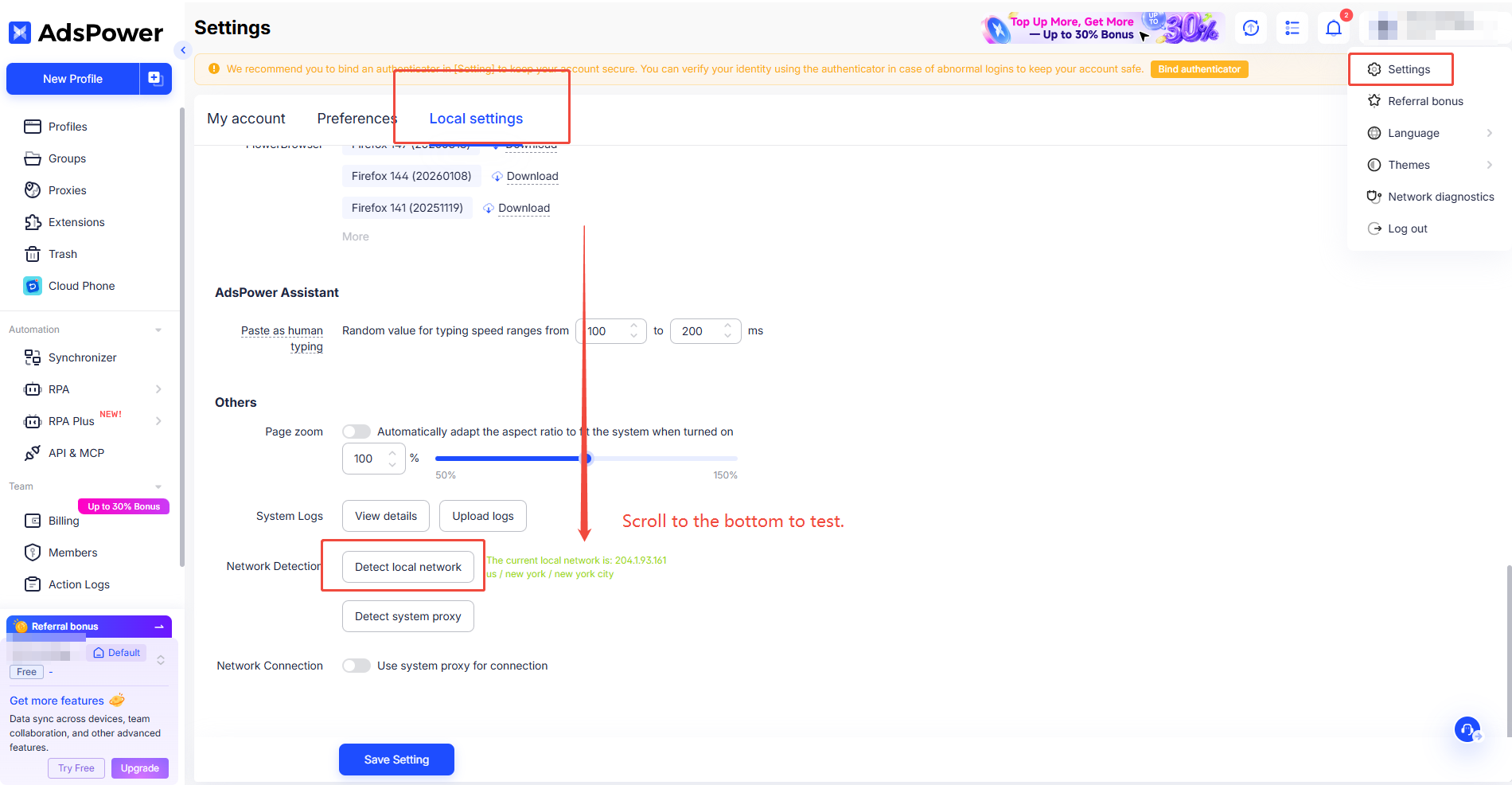
Step 1: Create or Edit Browser Environment
Open AdsPower client
Click "New Environment" button or select an existing profile to edit
Locate the network proxy settings in environment configuration
Step 2: Configure Proxy Information
Select proxy protocol type (match with backend settings)
Fill in proxy address (remove http:// or https:// prefix)
Enter port number
Input username and password
Step 3: Enable Network Function
Confirm the browser environment's proxy service switch is toggled ON
Some fingerprint browsers require additional checkbox selections
Step 4: Test and Launch
Click "Test Connection" button
Wait for test results; proceed if connection succeeds
Click "Launch Environment" button to enter browser
Common Misconfiguration Mistakes
Error Type | Correct Approach |
|---|---|
Extra http:// prefix on proxy IP | Delete all URL prefixes, input pure IP/domain only |
Accidental spaces beside port number | Clear redundant whitespace |
Case error on login credentials | Cross-check spelling in IPIPD dashboard |
Wrong protocol selection | Align protocol option with backend setup, prioritize SOCKS5 |
Disabled proxy toggle | Enable network proxy switch inside browser profile settings |
Step 4: Contact Customer Support for Advanced Help
If all previous checks are completed yet issues persist, submit a support ticket via IPIPD online helpdesk. Prepare the below documents to speed up troubleshooting:
Information Type | Details |
|---|---|
Proxy plan type | Static Residential / Native Residential / Broadcast Residential / Dynamic Residential |
Backend screenshot | Full screenshot showing IP, port and authentication info |
Applied proxy protocol | SOCKS5 / HTTP / HTTPS |
Test software name | AdsPower, Multilogin, Chrome or other tools |
Error screenshot | Complete error alert message screenshot |
Current network environment | Confirm overseas network status |
Our technical team will analyze and resolve your issue after receiving complete materials.
Technical Specifications
Supported Protocols: SOCKS5, HTTP, HTTPS
UDP: Enabled by default across supported protocols
Precondition: Valid overseas internet access required
Standard Config Format: IP:Port:Username:Password
Contact Us
Reach IPIPD online support for after-sale assistance. Custom enterprise solution, bulk proxy purchase and API integration inquiries are available via official customer service.