住宅代理会话超时怎么排查:配置、时长与失败日志
Quick Answer for Session Timeout Reviews
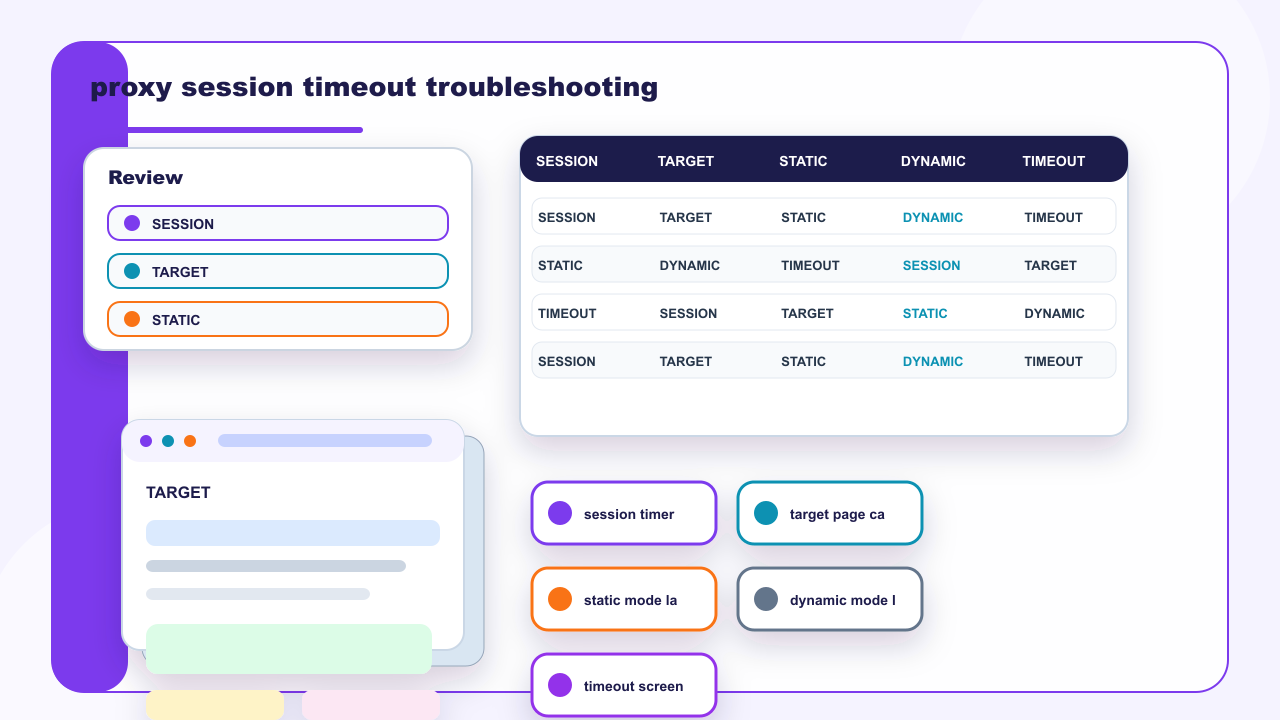
Residential proxy session timeout troubleshooting should start with the session rule, not with an immediate address replacement. Record when the session begins, how long it stays idle, which target page timed out, what status or browser message appeared, and whether the workflow used static or dynamic residential addresses. IPIPD teams should treat the log as evidence for the next adjustment, not as a promise that any address mode can guarantee access.
The useful decision is narrow: keep static residential addresses when the task needs continuity and the timeout is caused by pacing or idle handling; test dynamic residential addresses when the task can tolerate fresh address sessions and the old session state is creating repeated stops.
Basic Facts for Timeout Diagnosis
| Field | What to record |
|---|---|
| Step signal | Timeout appears after a session rule, pacing rule, target response, or retry condition changes. |
| Step mode check | Static residential addresses need stable session ownership; dynamic residential addresses need clean retry timing. |
| Step mistake | A timeout is not always solved by replacing an address. |
| Step review owner | One person should compare browser evidence, log rows, and retry results before scale-up. |
Step One: Match the Timeout to a Session Rule
Start with a row that names the task, target page, account-free browser state, region, selected address mode, session length, and exact timeout moment. A useful row also records whether the browser waited on connection, page load, script completion, or an application response. These are different problems, even when the visible symptom says timeout.
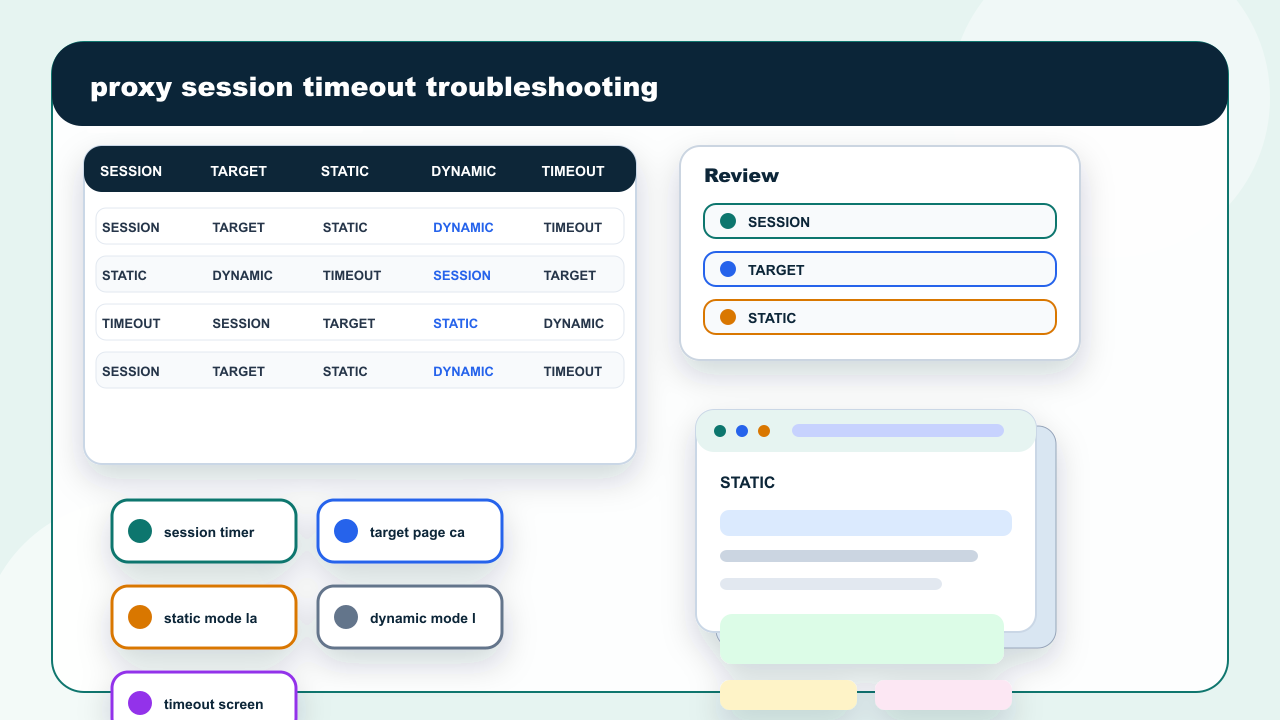
Session timeout evidence should connect the target, address mode, timer, and screenshot before changes are made.