On PS4, a proxy server is an optional intermediary entered during a Custom internet connection setup. The console sends supported network requests to the assigned proxy host and port instead of connecting directly. Most home users do not need one. Configure it only when a network administrator or an authorized service has supplied the exact address and port, and keep the previous settings so you can restore them.
Start with the task: what does the PS4 proxy field change?
The setting does not create a proxy account or discover a server for you. It only tells the console where an already assigned proxy endpoint is located. PlayStation's official connection guide places Proxy Server among the PS4 Custom settings, alongside IP address, DHCP host name, DNS, and MTU. If you do not understand a field, Sony recommends using Easy setup or asking the network administrator.
Field
What to enter
Safe default
Connection type
The Wi-Fi network or LAN cable you are authorized to use
Keep the working connection method
Proxy host
A hostname or IP address supplied for this network
Do not invent or scan for one
Proxy port
The matching numeric port supplied with the host
Do not substitute a random port
Restore point
A written note or photo of the former settings without secrets
Prepare it before changing anything
Step 1: record the working PS4 network configuration
Before changing the connection, note whether the console uses Wi-Fi or a LAN cable, which network name it connects to, and whether the current setup is Easy or Custom. Do not record the Wi-Fi password in a shared ticket or screenshot. If the console is managed by a school, workplace, hotel, or another organization, obtain permission before modifying the connection.
Frequently Asked Questions
Does a PS4 need a proxy server to connect to the internet?
Usually no. The Easy setup is appropriate for most home networks. Use a proxy only when the network owner or an authorized service gives you the exact host and port.
Where is the proxy setting on PS4?
Open Settings, Network, Set Up Internet Connection, choose Wi-Fi or LAN, select Custom, then continue until the Proxy Server screen appears. Menu wording can vary by system version.
Can a proxy guarantee lower latency or access to a game service?
No. A proxy adds another network hop and cannot guarantee latency, service availability, account safety, or acceptance by a game platform.
How do I remove a PS4 proxy setting?
A restore note should contain only what is needed to reverse the change: connection type, network name, whether IP and DNS were automatic or manual, and whether the previous Proxy Server choice was Do Not Use. This turns troubleshooting into a reversible test rather than a chain of guesses.
Step 2: open Custom setup and enter the assigned host and port
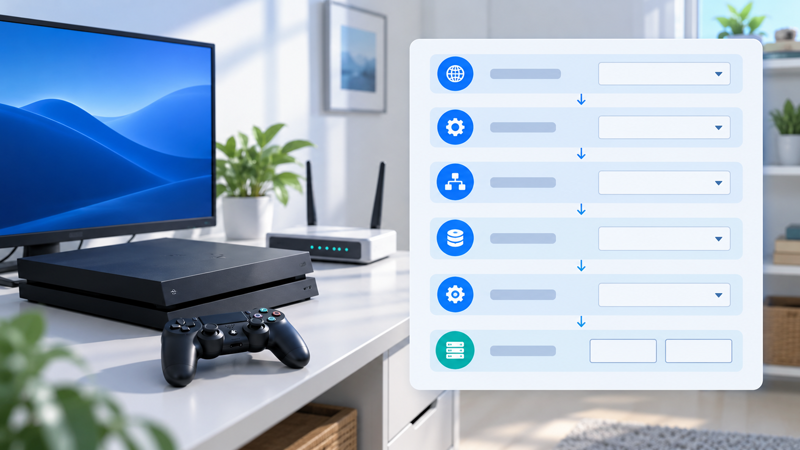
On the console, open Settings, choose Network, then Set Up Internet Connection. Select Use Wi-Fi or Use a LAN Cable to match the connection you recorded. Choose Custom. Continue through IP Address Settings, DHCP Host Name, DNS Settings, and MTU Settings using the values approved for the network. Do not change unrelated fields merely because the Custom path displays them.
At Proxy Server, choose Use only when you have a valid endpoint. Enter the assigned hostname or IP address and its matching port. Treat values such as
proxy.example.net
and
8080
as documentation examples only; they are not working credentials. Never paste a username, password, token, or private endpoint into a public article, support forum, or shared screenshot.
The PS4 screen exposes host and port fields, but a particular upstream service may require an authentication arrangement the console cannot complete directly. That is a compatibility question for the network owner, not a reason to guess settings or weaken controls. Stop and ask for a supported configuration when the supplied instructions do not match the console fields.
Step 3: test the connection and separate each result
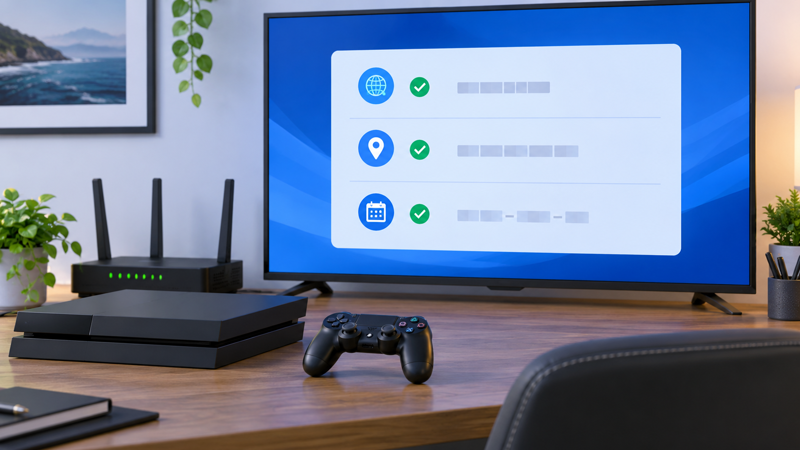
Save the configuration, then run Test Internet Connection. Record the time and the individual result lines instead of reducing the whole test to “works” or “fails.” A successful IP address assignment indicates that the local network issued or accepted an address. A successful internet connection indicates broader reachability at that moment. Sign-in or service checks can still fail for reasons unrelated to the proxy field.
Compare the result with a direct connection only when the network owner permits that comparison. One successful test does not prove long-term stability, faster gameplay, broad compatibility, or service access. One failed test does not identify the cause until the local link, IP settings, DNS, endpoint reachability, and assigned proxy values are checked separately.
Read the failure stage before changing another setting
If the console cannot obtain an IP address, first inspect the Wi-Fi password, LAN cable, router connection, and IP configuration. If it obtains an address but cannot connect to the internet, recheck DNS, gateway availability, and whether the assigned proxy host and port are reachable from that network. If an online service alone fails, check the service status and account conditions without assuming the proxy is the cause.
Change one variable at a time and rerun the same test. Replacing the host, port, DNS, and MTU together destroys the evidence needed to locate the fault. Keep timestamps because temporary network or service outages can otherwise look like a permanent configuration error.
Restore the PS4 connection safely
If the proxy was entered for a temporary authorized test, return to Set Up Internet Connection, choose the original connection type, and follow the same Custom path. At Proxy Server, select Do Not Use, or restore the precise setting documented before the test. Reapply the original IP, DNS, and MTU choices only if they were changed, then run Test Internet Connection again.
When restoration does not recover the previous result, stop making additional changes. Compare the restore note line by line, restart only the equipment you are authorized to restart, and ask the network administrator to verify the assigned configuration. Factory resets are not a routine proxy troubleshooting step because they can remove unrelated settings and saved context.
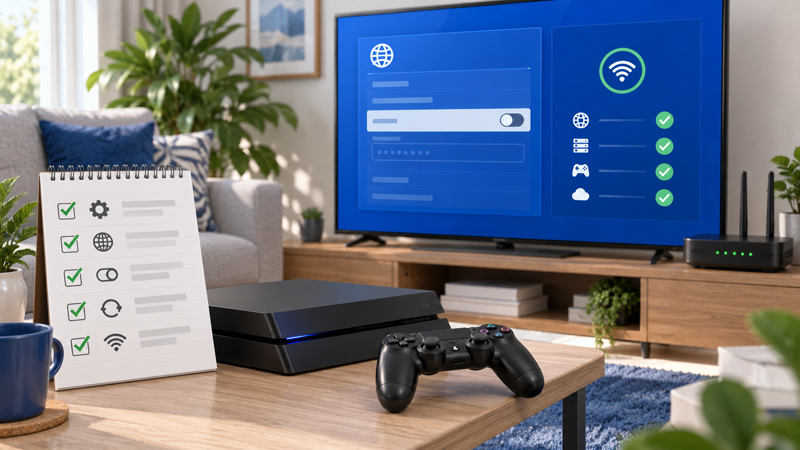
Quick reference for a controlled PS4 proxy test
Confirm that the network owner authorized a proxy configuration.
Record the working connection and non-secret restore values.
Use Custom setup without changing unrelated fields.
Enter only the assigned host and matching port.
Run Test Internet Connection and record each result line.
Change one variable per troubleshooting attempt.
Choose Do Not Use to remove the temporary proxy setting.
Escalate compatibility questions instead of inventing credentials.
For a broader explanation of assigned host and port fields, see the proxy server setup guide, then use the proxy settings field reference when a value is unclear. The authoritative PS4 menu sequence and cautions are available in the PlayStation connection guide. This article does not claim that IPIPD static IP or VPS products are PS4-specific solutions. VPS is a server product, not a proxy type, and no latency, access, account, or platform outcome is promised.
Run Set Up Internet Connection again and choose Do Not Use at the Proxy Server step, or restore the previously documented network configuration. Then test the connection.